

You Use AI Tools Every Day: Does Your Laptop Need More RAM?
28 October 2026 · by FTDS Hardware
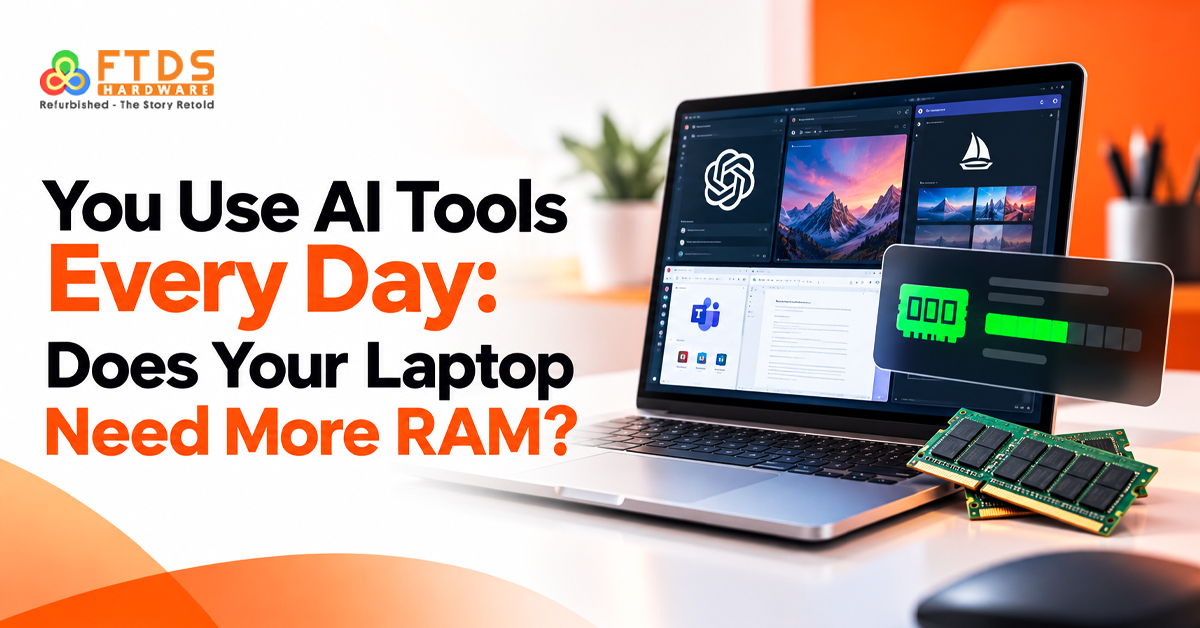
AI assistants, writing tools, meeting transcribers and image generators can simplify everyday work, but they also run alongside browsers, office software and background apps. If your laptop slows down when you switch between tools, limited memory could be a factor. Check your usage before buying a new computer to see whether a RAM upgrade could help.
How to identify laptop RAM limits when using AI tools
Most browser-based AI services process requests on remote servers, but your laptop still needs memory for the browser, displayed results and other open applications. The amount of laptop RAM for AI tools you need therefore depends partly on how many tasks you run at once.
Watch for these warning signs:
- Browser tabs reload when you return to them.
- Applications pause when switching between windows.
- Video calls become sluggish while documents and AI tools are open.
- Windows shows consistently high memory usage during normal work.
In Windows, open Task Manager and select Performance → Memory while repeating the tasks that cause the slowdown. Check memory usage before deciding whether an upgrade is necessary.
How much RAM does a laptop need for everyday productivity?
Your memory needs depend on the applications you use and how many remain open. When deciding how much RAM does a laptop need, consider your busiest working session rather than testing a single AI website.
Here is a practical starting guide:
- 8GB RAM: Suitable for lighter browsing, documents and occasional browser-based AI use when relatively few applications are open.
- 16GB RAM: A practical choice for many users combining AI productivity tools, office applications, browser tabs and video meetings.
- 32GB RAM or more: Worth considering for demanding creative projects, development environments, virtual machines or certain local AI workloads.
A 16GB RAM laptop can suit everyday multitasking, while a 32GB RAM laptop offers more capacity for demanding workloads. Actual performance still depends on the software and overall system configuration.
Choose laptop RAM for multiple applications based on your routine
A laptop RAM upgrade in Chennai may be worth considering if you regularly use a browser, AI assistant, email, spreadsheets and video meetings at the same time. Chrome tabs RAM usage varies with the number of open pages and the content they load.
Before buying memory, close unused tabs, disable unnecessary startup applications and test your usual workload again. If the laptop still struggles, you can assess whether more memory is needed. When you upgrade laptop RAM for better performance, the goal is to reduce memory pressure and make multitasking smoother, not to fix unrelated hardware or software issues.
When is a laptop RAM upgrade near me the right choice?
Searching for a laptop RAM upgrade near me makes sense if your laptop still meets your needs but struggles with multitasking. First, check whether its memory can be upgraded, as some thin laptops have soldered RAM.
Before selecting a service provider, confirm your laptop model, available memory slots, supported RAM type and maximum capacity. Ask for the total cost of the compatible module and installation.
A technician should verify laptop RAM compatibility before recommending a replacement or addition. If you plan to upgrade laptop RAM for better performance, confirm that the proposed configuration is supported and whether your existing memory can be retained.
Find a laptop RAM upgrade in Chennai with compatibility checks
When looking for a laptop RAM upgrade near me, choose a provider who checks compatibility before recommending parts. Capacity alone is not enough; the memory type and supported configuration must match your laptop.
Share your laptop's model number and describe when the slowdown occurs. This helps the technician investigate whether memory, storage or another issue is responsible.
Why CPU temperature while gaming needs a separate check
RAM limitations and overheating are separate issues. CPU temperature while gaming may rise during demanding sessions, but adding memory will not directly reduce processor temperatures.
Use a reputable monitoring utility and compare its readings with the manufacturer's guidance. Normal temperatures vary by processor, cooling design, fan settings and room conditions.
If you play games while running AI tools and other applications, laptop RAM for multiple applications can affect smoothness when memory is nearly full. A laptop running slow with multiple tabs may also have a cooling issue if its fans become unusually loud or performance drops during longer sessions.
Dust, blocked vents and restricted airflow can impair cooling. Check the ventilation openings and seek professional assistance if excessive heat persists.
Check laptop running slow with multiple tabs alongside memory usage
To investigate laptop performance with multiple apps, monitor memory usage and processor temperature separately. High memory use can affect multitasking, while thermal throttling can reduce processor speed when the system overheats.
If you multitask while gaming, assess laptop RAM for multiple applications using your usual browser tabs, AI tools and communication software. Memory upgrades and cooling repairs address different problems.
Upgrade laptop RAM for better performance without unnecessary spending
Consider a laptop RAM upgrade when usage checks indicate that memory is limiting your normal workload. Before ordering parts, consult the manufacturer's specifications or service manual to confirm that the RAM is replaceable and which configurations are supported.
Plan a compatible RAM requirements for AI applications
When comparing laptop upgrade options, ask the technician to confirm the supported capacity, install compatible modules and check that Windows recognises the memory correctly. A stability test after installation can help identify problems.
For anyone researching how much RAM does a laptop need, the answer depends on workload. Occasional AI chats and light browsing generally require less memory than sessions involving large spreadsheets, many tabs, video calls and creative software.
Final checklist before choosing more memory
- Check Task Manager while the slowdown occurs.
- Note your current memory capacity and laptop model.
- Close unnecessary apps and repeat the task.
- Check cooling separately if the laptop gets hot.
- Confirm upgrade compatibility and installation costs before buying.
If you are considering a laptop RAM upgrade online Chennai, share your model number and explain which tasks cause slowdowns. A proper diagnosis can help you avoid buying memory that will not solve the problem. Choose a capacity that suits your regular workload and leaves enough room for your essential applications.